How to use Roost
New to Roost? This covers the essentials — adding your appliances, keeping their upkeep on track, tracking your pantry, and turning food that’s about to expire into dinner. There’s no account to create, and everything you enter stays private on your device.
First launch
There’s no sign-up — just open the app and go.
- Choose the kind of home you’re setting up when Roost first opens.
- Allow notifications if you’d like reminders when maintenance is due. You can change this later in Settings.
- If you’re signed in to iCloud, Roost syncs your data privately across your devices — automatically, with no account.
Add your appliances
Start by telling Roost what’s in your home.
- Open the Upkeep tab.
- Tap + and add an appliance — your dishwasher, boiler, smoke alarm, anything you maintain.
- Save its model number, manuals, and warranty details so everything lives in one place.
Tip · You can type the model number, or scan it with the camera.
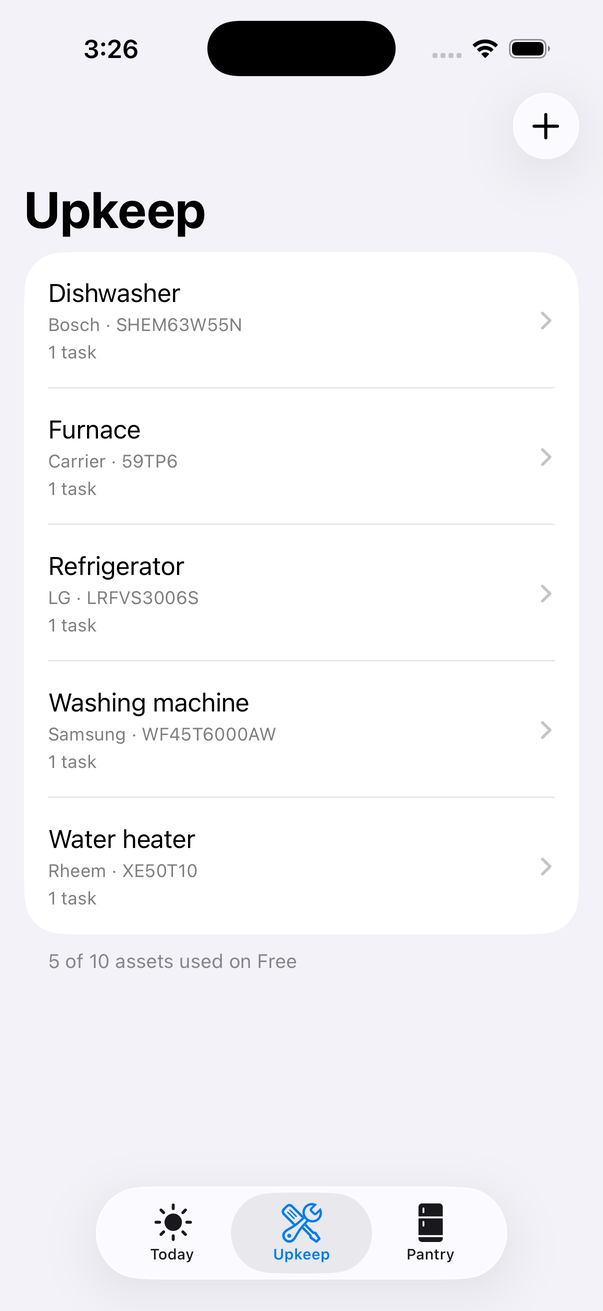
Stay on top of upkeep
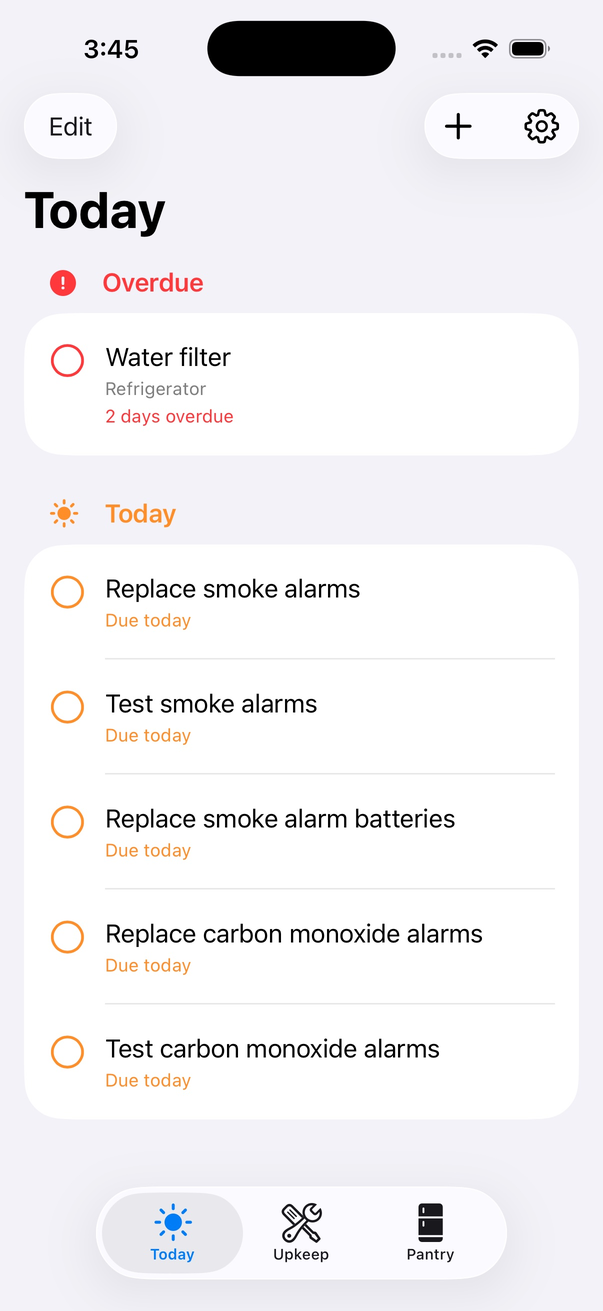
Add the tasks each appliance needs, and let Roost track when they’re due.
- Add maintenance tasks to an appliance — like replacing a filter or changing smoke-alarm batteries. Suggested intervals are based on real safety guidance.
- Open the Today tab to see everything overdue or due today across your home.
- Tap a task to mark it done — Roost schedules the next one for you.
Tip · Turn on notifications to get a nudge the day something’s due.
Track your pantry
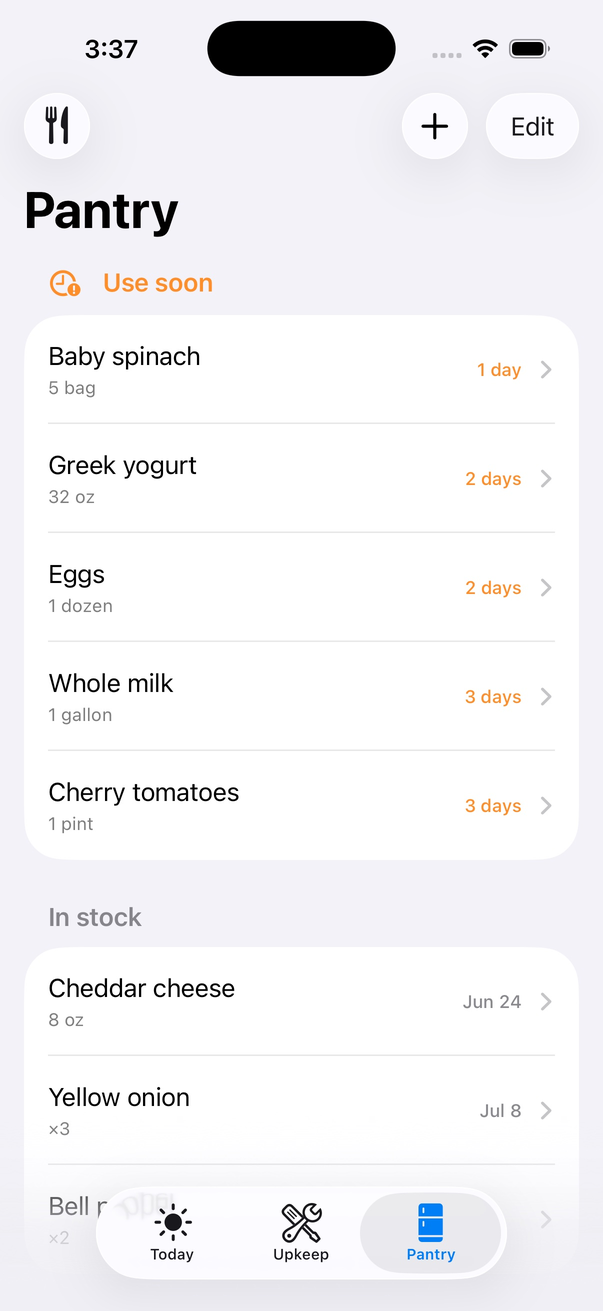
Keep an eye on what’s in your kitchen and when it expires.
- Open the Pantry tab and tap + to add an item.
- Scan its barcode to fill in the details automatically, or add it by hand.
- Set an expiry date so Roost can warn you before it goes off.
Tip · Items are grouped into Use soon and In stock, each with a badge showing how long it has left.
Use It Up recipes
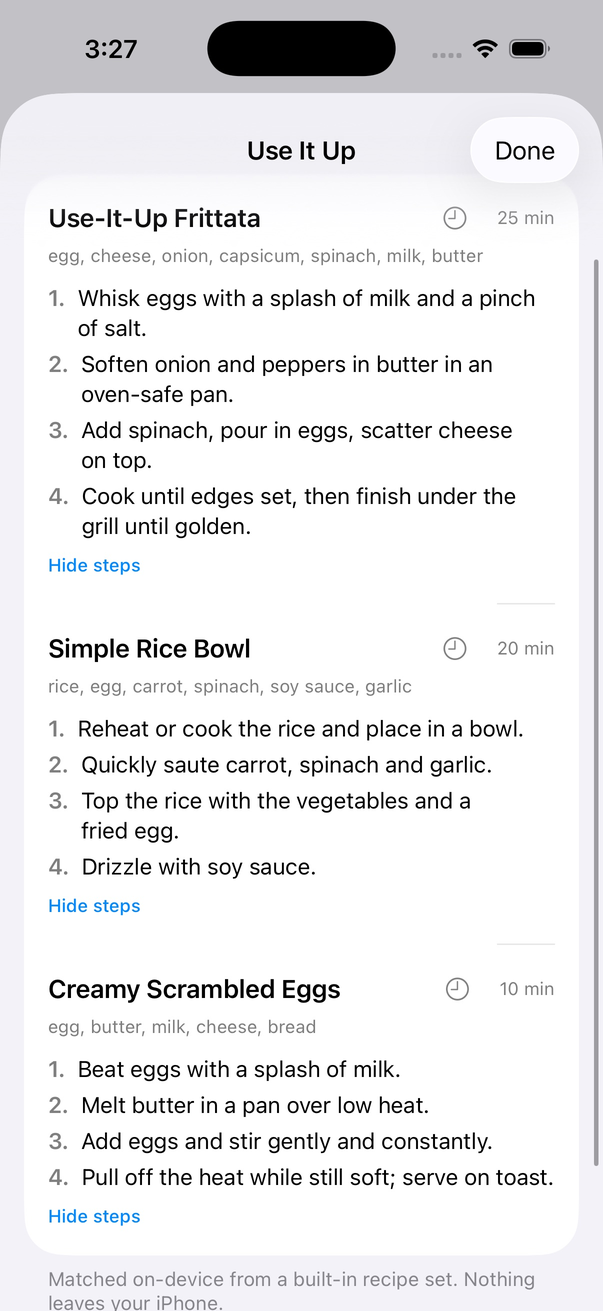
Turn food that’s about to expire into something to cook.
- Open Use It Up to see recipes based on your pantry.
- Roost suggests ideas built around the items closest to their expiry date.
- Cook, then mark items as used to keep your pantry accurate.
Tip · Suggestions are generated privately on your device — your pantry is never sent anywhere.
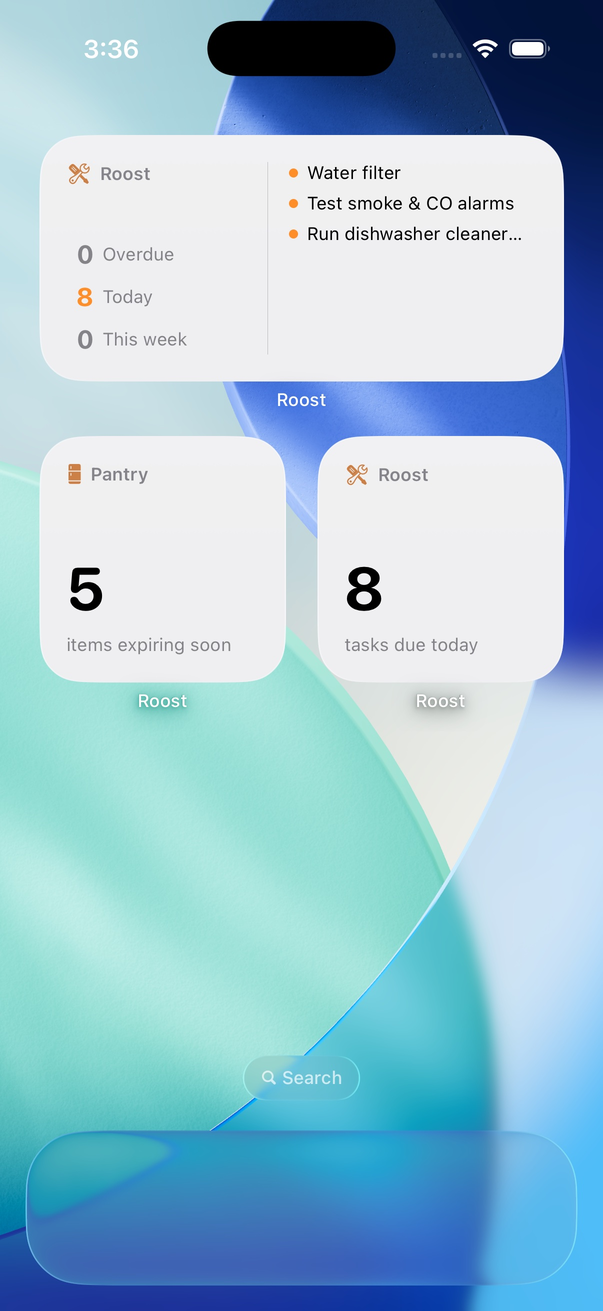
Home Screen widgets
See what needs attention without opening the app.
- Touch and hold your Home Screen, then tap + in the corner.
- Search for Roost and choose a widget.
- The Today widget shows what’s due (free); the Pantry widget shows what’s expiring soon (Roost Pro).
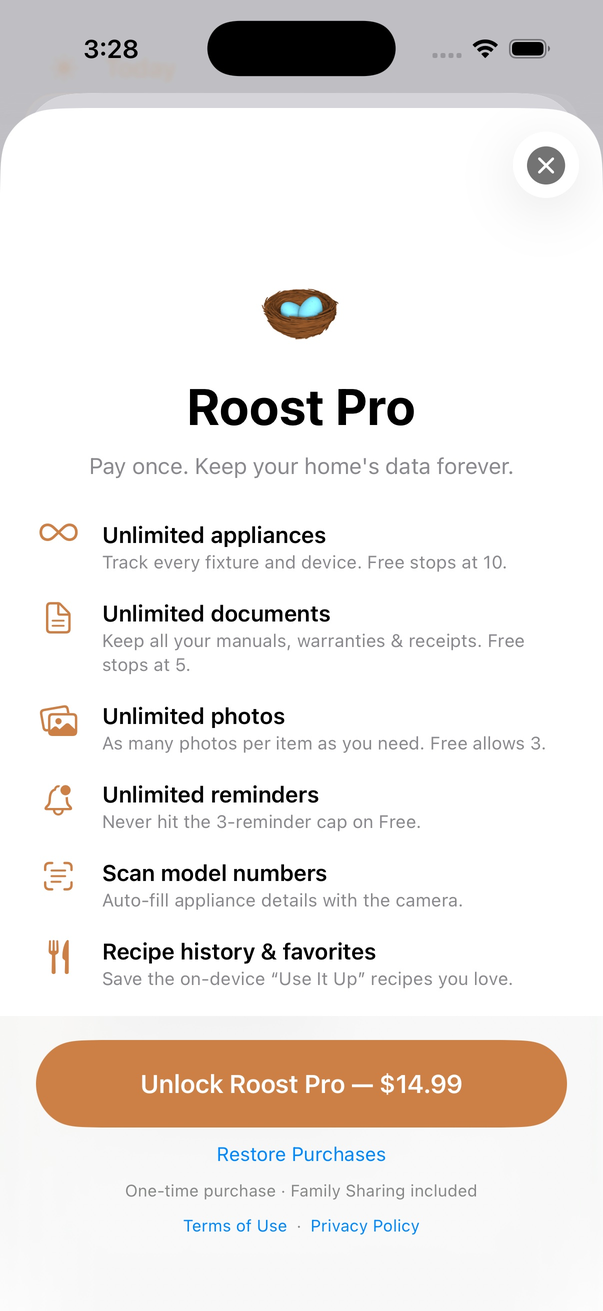
Roost Pro
Roost is a one-time purchase — no subscription, ever.
- Roost Pro unlocks the full app for a single $14.99 payment.
- Already bought Roost on another device? Tap Restore Purchases.
- Family Sharing is supported, so your household can share one purchase.
Still stuck?
Email support@defrust.com and we’ll help. You can also read the Privacy Policy or head back to Roost.